

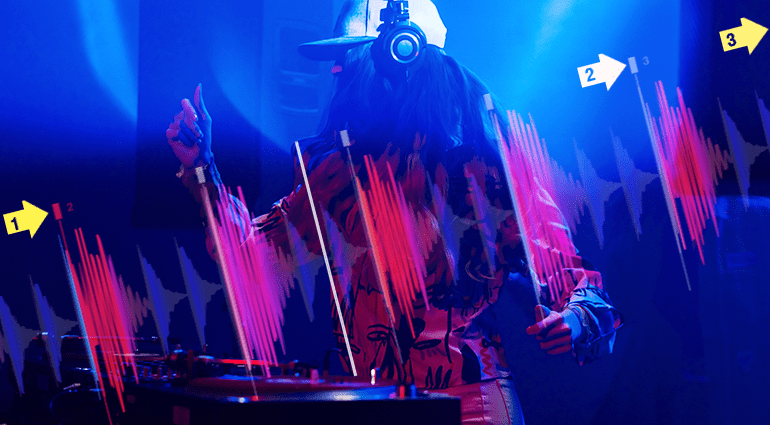

💥 Beatgrids are vertical markers that are automatically placed in a waveform by DJ software. They are placed on the bass drum and the snare or claps of a track.
The DJ software not only uses these beatgrids to calculate the BPM number, i.e., the tempo of the track. Thanks to beatgrids, tracks can also be synced and tempo-matched at a touch of a button while maintaining phase coherence.
🎧 However, if you blindly rely on this feature without any musical background knowledge, you’ll inevitably encounter stumbling beats on some fades, as DJ software cannot always detect the pulses of the beat correctly.
“Extrapolating” Beatgrids
In general, DJ software determines the beatgrid based on the level peaks in the first bar. The software then copies this grid to the rest of the track. If the beat structure changes throughout the track, the grid no longer lines up with the actual beats.
In the case of so-called shuffle beats, the software sometimes gets confused by the double hits of the bass drum and sets the marker for the second bar too late, so that the grid doesn’t fit at all, and the software displays an incorrect tempo, for example, 97 BPM instead of 130 BPM. However, there are now tools that can solve this problem, such as the flexible beatgrid editing function in Native Instruments Traktor Pro 4.

Drums with Soft Attacks
DJ software detects the beats based on level peaks in the waveform. The marker is usually placed at the beginning of the section interpreted as a beat. However, not all bass drums, snares, or claps have a hard, easily recognizable attack. The softer the attack, the longer the beat in the waveform – you can also see this in the waveform display. This tolerance can lead to incorrectly positioned beatgrids.
Pickup Beats and Intros
Not every song starts on the so-called “1”, the downbeat. Sometimes the first downbeat is preceded by an intro or fill. DJ software can misinterpret this as a downbeat, which means that the entire grid does not sit correctly on the beats.

Laid-back Grooves
To achieve a certain kind of groove, producers sometimes use the so-called laid-back technique. This means that the kick or snare is placed slightly behind the actual beat, which makes the groove sound slightly delayed. When mixed with another track, this can lead to a slightly out-of-sync sound.
Swinging Beats
If the track was recorded by a drummer who didn’t play to a metronome or click, the tempo fluctuates slightly. Naturally, drums that were played live by a human don’t always line up perfectly with the beats. These subtle variations can make a groove sound more lively and swinging, which is why many producers also apply this technique to computer-produced tracks. In these cases, the beatgrid often doesn’t match the actual beat, making it almost impossible to sync without errors.
Now that we know what can go wrong with automatic beatgrids, let’s get to work. Here’s how to manually adjust beatgrids:
- After analyzing the tracks in the library, open the beatgrid edit window in your DJ software to delete, reset, shift, stretch, or compress the existing beatgrid.
- In the case of intros or pickup beats, when the first marker is set too early, shift the entire grid manually using the right arrow button until it lines up with the actual downbeat. The same technique is also used to manually align the grid with beats with soft attacks or a laid-back feel. It’s best to play another track on the second deck and sync both to hear whether the two beats are in sync or sound slightly offset. In the latter case, trust your ears and manually move the grid to the position where the beats line up best.

- For shuffle beats, place the first marker of the second bar manually, often by holding down the X key as in Serato DJ Pro. The DJ software immediately recognizes the actual beat structure and therefore also the correct tempo, and all further beatgrids should line up perfectly. In contrast, the “adjust” arrows of the beatgrid edit mode for stretching and compressing the grid do not solve this problem.
- Swinging beats require you to check the grid throughout the entire track. If the beatgrid does not match the rhythm of the song, manually set each first beat of a bar using the X key. In Traktor Pro 4, you can set new markers before drifting beats and the software adjusts all subsequent ones.
If this is too time-consuming, you can usually get away with limiting it to the parts that will potentially be used for mixing, e.g., the intro, outro, chorus, middle 8, and bridge.

But beatgrids are not only crucial for mixing, but also for live remixing with digital audio workstations such as Ableton Live or Native Instruments Maschine.

Ableton Link, a technology for synchronizing hardware and software applications such as Serato DJ Pro and Traktor Pro via a wireless network or cable, also requires accurate beatgrids in order to sync the tracks from your DJ software with your DAW not only in terms of tempo but also in terms of beat position.
You are currently viewing a placeholder content from YouTube. To access the actual content, click the button below. Please note that doing so will share data with third-party providers.
Also, DJ.Studio Pro, an AI-based software for automatic mixing, also requires clean beatgrid editing, which can also be adjusted manually if necessary.

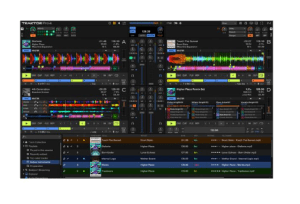
Thanks to artificial intelligence, this program is even one step ahead of other DJ applications because it can correctly identify beats even in the case of fluctuating tempos and rhythmic deviations. It will therefore only be a matter of time before AI takes over beatgridding in other DJ software and manual corrections become a thing of the past.
You are currently viewing a placeholder content from YouTube. To access the actual content, click the button below. Please note that doing so will share data with third-party providers.
Event for DJs
Are you a DJ and want to learn more about lighting/DMX controls? Join our event “DMX Controls and Basics for Beginners.” The event will take place on Saturday, January 18, 2024, at our Treppendorf location.

DJ Equipment on thomann.de
Or just browse our online shop at the link above. Have fun!

DJ Equipment: Your Advice from Thomann
Do you need advice on DJ equipment? Get in touch with us. We’ll be happy to help. Here you can find our contact details.
DJing: Beatgrids – Your Feedback
Do you use beatgrids and want to share any other ideas for quick corrections and their creative use? Let us know in a comment!












Comments 0
No comments yet.